Showing posts with label Computer Education. Show all posts

Wednesday, January 19, 2011

How To Fix Problems in PC crashes

Here are some useful tips on How to fix common problems in PC.How To Fix Problems in PC crashes
Your computer slows down, and part of the screen goes either black or white. This usually means that you’re using too many applications or programs all at once, and your computer can’t handle it. Try pressing ctrl+alt+delete, and look for the program that giving you trouble (usually labeled “not responding”), then try closing the said application by clicking end task. And if your computer is still in the line age of the dinosaur, try not to do all things at once. You might end up with less than you want to gain. Also, this may mean that your 20 years old version computer needs some upgrading like increase of RAM, or better yet, a new computer.

You removed some files or programs from your PC, and the next time you boot up, it won’t.
All computer operating systems (OS) have their own standard files and applications that will render the computer inoperable if you remove them. It safe to say that in windows, whatever was installed in your PC should not be removed, because windows will look for it when you boot up again. Also don’t simply delete programs that look unnecessary or uninstall them. When you boot up, windows system files look for programs that have been installed, so whether you remove the program manually or accidentally, you’re bound to get in trouble.

You installed a new hardware and software, and get a fatal exception error (or something like that). That’s what you called “Blue Screen of Death”. You might have installed something that is incompatible with your OS, it might be a new sound card, RAM, device driver, software. Try to remove that hardware that you installed or download the latest software updates for that particular hardware. Also pieces of advice, if you are unsure about installing something, try to find someone who knows better.

Why doesn’t my PC shut down, why is it so slow? When about to shut down your PC, allow a few minutes for some rest time. Illegal shutdowns can result in more permanent damage to your files or worst to your PC as well. The system might still be resolving something, maybe like cleaning up temporary files or folders, reallocating memory. This will help prevent from crashes. Try to backup your files on another media, like CD, DVD, or another hard disk. When your system fails, you can still restore your files.
Tuesday, February 09, 2010

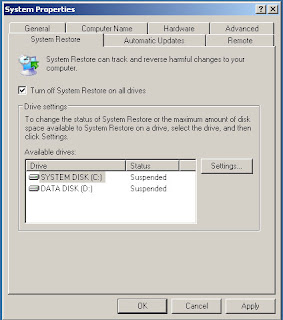
How to Turn Off System Restore

System Restore is a component of Windows XP Professional that you can use to restore your computer to a previous state, if a problem occurs, without losing your personal data files (such as Microsoft Word documents, browsing history, drawings, favorites, or e-mail). System Restore monitors changes to the system and some application files, and it automatically creates easily identified restore points. These restore points allow you to revert the system to a previous time. They are created daily and at the time of significant system events (such as when an application or driver is installed). You can also create and name your own restore points at any time.

System Restore performs the following tasks:

1. Restores your computer to a previous state: System Restore automatically tracks changes to your computer at all times and at specific intervals by creating restore points before changes occur. Restore points are stored states of your computer. This allows you to restore the computer to a previous state, by choosing a restore point on a date or time prior to when you made the change.
2. Restores your computer without losing your personal files: System Restore does not cause you to lose your personal files or password. Items like documents, e-mail messages, browsing history, and the last specified password are saved when you revert to an earlier state with System Restore. System Restore protects your personal files by not restoring any files in the My Documents folder.
3. Stores one to three weeks of past restore points: The actual number of saved restore points depends on how much activity there has been on your computer, the size of your hard disk (or the partition that contains your Windows XP Professional folder), and how much disk space has been allocated on your computer to store System Restore information.
4. Locates dates associated with restore points: When you run System Restore, a calendar is displayed to help you find dates associated with restore points. If you don't use your computer every day, some days might not have any restore points. If you use your computer frequently, you might have restore points almost every day, and some days might have several restore points.
5. Ensures that all restorations are reversible: If you do not like the state of your computer after your restore it, you can undo the restoration or select another restore point. All successful restorations are reversible. All failed restorations are automatically reversed by System Restore.
6. Provides several types of restore points: The list below describes each type of restore point and how System Restore works with each type.
• Initial System checkpoints
• System checkpoints
• Program name installation restore points
• Windows XP Professional automatic update restore points
• Manually created restore points
• Restore operation restore points
• Unsigned device driver restore points
• Microsoft Backup utility recovery restore points

To turn off System Restore:
1. To open System Properties, click Start, click Control Panel, and then double-click System. In the System Properties dialog box, click the System Restore tab.
2. Ensure that the Turn off System Restore on all drives check box is selected. Then click Apply and Ok.
How to Turn Off System Restore
Note:
If you cannot turn System Restore off, your domain administrator might have enforced administrative system Group Policy on System Restore. Contact your domain administrator.

How to Speed Up Your Computer without Using Third-Party Software

speed up computerSo, you got yourself a new computer, but its not shaping up to what it used to be all that time ago? Here’s how you can help speed up your computer to like it used to be. All changes you make is at your own risk, no responsibility is taken if your computer stops working

Step 1: Opening the system configuration
This tool allows you to edit your windows start-up configuration changing what will run and what will not. Open the utility by going to Start, and then Run. Afterwards, type in “msconfig” and press OK. In Windows Vista, you may have to type ‘run’ into the search box on Start. Users with Windows 2000 do not have this utility, but they can still use it by copying the file from Windows XP or Vista and putting it onto your system. Operating systems below 2000 can not run this utility.

Step 2: Editing the startup settings
By clicking the ‘Startup’ tab, you can now choose what processes you would like to run on your computer at start-up. The more you uncheck, the faster your computer will be. Obviously, do not uncheck any Microsoft or Windows Operating System processes, as these will stop your computer from working. Make sure you leave checked any processes required for sound, video, display and virus protection software. It is inadvisable that you change any other setting, but once finished, restart your computer.

Step 3: Uninstalling unnecessary programs
After time you may have got yourself programs you don’t even need anymore. You can easily uninstall these programs from your Control Panel. Going to your Control Panel and selecting ‘Add or Remove Programs’, or for Vista users ‘Programs and Features’, will bring up the necessary screen. Browse through the list of programs you have, and choose the uninstall tab on the program you wish to remove, highlighting first the program you want to remove. Once the setup is done, continue uninstalling programs until you are happy, it also will free up extra space on your hard drive. Restart the computer once finished. Do not uninstall any programs that have been installed by Windows Update / Microsoft Update, these are necessary to keep the computer working properly. Also, do not uninstall Java.

Step 4: Running a disk defragmenter
Defragmenting your hard disk helps to speed up your computer and its ability to load files faster. To run this, go to Start, then All Programs, then Accessories, then System Tools, and finally choose Disk Defragmenter. It may take several hours to complete, but it can be worth the time after.

Step 5: Adjusting your computer for best performance
If you like the style of the old Windows Classic themes, you should follow this step to enable your computer to be faster. Sure it’ll look a bit uglier on the eyes, but at least you’ll be ahead of the game. Going to Control Panel, then System (then Advanced System settings for Vista), will bring up your computer’s system information. Click the advanced tab, if not already, and press the ‘Settings’ button underneath performance. Select the option to “Adjust for best performance” and press apply.

Step 6: Increasing the virtual memory
Virtual memory, also known as Page File memory, uses a portion of your hard disk and acts like RAM allowing more information to be used and made at one time. It stores data about programs while your computer is running, and dumps it as needs be. Keeping the performance window open, go to the Advanced tab. By clicking the ‘Change’ button will allow you to increase your virtual memory. Uncheck the setting “Automatically manage page filing size for all drives”. Then choose your hard disk drive from the list and choose custom size. Set the sizes accordingly to however much page file your computer uses (1024MB is best as an initial size). Once finished, press ‘Set’ and ‘OK’. You should not set your maximum size larger than double the minimum setting, otherwise too much space may be used on your hard drive leaving you nothing left.

Step 7: Running a virus scan
If you have an anti-virus scanner installer on your computer, have a disk with one on handy, or a place to get a free scanner (Such as Avast or AVG free), run a thorough virus scan on your computer, it will help to detect any harmful computer viruses and remove or contain them in a secure way. Viruses will slow down you computer, so it is handy to have.

Sunday, February 07, 2010

The Relevance of Flash

When Apple’s iPad was announced, a lot of people were hoping that it would Adobe’s Flash. When it didn’t, those folks were so loud that the internet reverberated with how pissed they were with Apple. While the debate on the usefulness and success of the iPad is still up in the air -- we cannot say until the device actually ships and the actual sales numbers from Apple get published -- the relevance of Flash as an important component of the web is now being questioned.

Blogger Robert Scoble, in his blog, Scobleizer, posted “Can Flash be saved?” , paving the way for a long discussion that gives us insight about Flash.

Now add to the fact that Daring Fireball’s John Gruber started posting his site’s statistics reflecting the number of visitors using non-Flash enabled browsers - 32.38% , as of the last week of January 2010. Include popular website, Lifehacker.com, posting a steadying decline in the number of Flash-enabled browsers, from 2.32% in 2006 to 6.07% in 2009, and Waxy.org’s Andy Baio tweeted that 16% of its visitors don’t have Flash installed, up from 4% a year ago, you’d get an idea that Flash is indeed a dying platform. A friend of mine, Apple genius, Martin Gonzalvez, tweeted that on his Mac, running Hulu.com Flash video at 75% screen resolution eats up 92% of his Mac’s CPU cycles, as compared against running Windows 7 with full anti-virus scanning on VirtualBox (a virtualization software) only consumes 66%! He continues that running an HTML5 480p video, at the same resolution as the Flash video, on Safari ate only 15% of his Mac’s CPU cycle. This is not scientific, but then again, you can try this out yourself. Apple knows that Flash is such a resource hog, and worse, it is so unstable that Apple decided to re-engineer Safari to run plug-ins in a sandbox. That way, when a plug-in crashes (particularly Flash), it will not crash Safari. This is also the reason why iPhone and iPod Touch, and the upcoming iPad, do not support Flash -- in addition to Apple not having full control of it, its disadvantages outweigh its advantages. Personally, I think Apple did a good job here.

Google’s YouTube is now experimenting on HTML5 videos. Video site, Vimeo, is doing the same thing. Now, if these aren’t indications of where Flash technology is going, then I do not know what other signs one needs. I have used an iPhone since it debuted in the US, and not once did I miss Flash. I have Flashblock on my Firefox browser, and ClickToFlash on Safari. Heck, I don’t even have Flash on my NexusOne (although Adobe said that it will soon be released).

Since these are my tools to access the web, then I definitely have no use for Flash. :P Frankly, if not for games, such as Farmville and Mafia Wars, I am sure that most of my friends will abandon Flash, too. Web-developers should learn that providing a Flash-only site alienates a growing percentage of viewers. They should learn to provide an alternative non-Flash version, if they want to continue getting those eyes on their sites. With Apple’s iPad getting a lot of media coverage, I am sure that major sites are now reconsidering their offerings. Ironically, one of Adobe’s Flash platform evangelists posted a blog post showing different websites (including a porn site) that support Flash, as a JPEG image, instead of their “ubiquitous” Flash. Mr. Merlin Mann caught it and it has been reblogged on my Tumblr site, . Like Mr. Mann, I’m used to seeing the blue block on my browsers!

Wake up and smell the coffee - your time is up, Flash! Developers are now moving AWAY from the platform. With browsers, armed with plug-ins, and devices not supporting your technology, you have no way else to go. Frankly, Flash, like Windows Media, is going the way of RealMedia -- to the grave!
source: mb.com.ph

Thursday, November 05, 2009

Windows to the (PC) soul

Windows 7
How does one launch a computer operating system? By keeping it simple, of course. And that is exactly what happened in Singapore recently when Microsoft launched Windows 7. They called the launch “a deep dive into Windows 7.” I guess it meant that we would plunge head first into Windows 7, and figure out how it works, hands-on. The hall was filled with PCs of different shapes, sizes and colors. There were netbooks, notebooks, desktop computers (touchscreen and not) — all loaded with Microsoft 7, of course.

A Window To Windows 7

I had fun playing around with the computers, most specially with the touchscreen computer, which allowed me to rearrange the screen to my liking. Fun! Drag, position and set. The games were also quite cool, although I had to make sure that I did not hog the computers because there were lots of folks waiting to get their hands on them, too. I was pleasantly surprised to discover how easy it is to get the hang of Windows 7. “In 1975, Bill Gates was quoted as saying in Popular Electronics magazine after he saw the first micro computer, that it would be the device that would change the world,” says Richard Francis, GM for Windows, Microsoft Asia-Pacific at the launch of Windows 7. “Today, 24 years later, I am pleased to say that there are over a billion personal computers running on Windows.” At the time, what Gates said was a very ambitious vision statement. Ten years later, in 1985, Microsoft introduced the first copy of Windows, which was called Windows 1.0. “What started off as a vision of a computer in every desk and home is now coming closer to reality,” Francis says and adds that it took one year for Microsoft to develop Windows 7. “This OS was developed because our consumers told us what they wanted in a computer system. We listened and are happy to say that we have come up with a product that our users want.”

He says the development of Windows 7 was based on three tenets:

1. Simplicity: People want to work with a computer they are familiar with, something that they use in the office, and something they can feel equally as comfortable with back home.

2. Value: Nothing comes close to the Windows value system. Because of Microsoft’s close relationship with its hardware manufacturers, all the devices that are out today have been developed in close coordination with their partners. There are all sorts of computers, just as there are all sorts of users.

3. Choice: They have PCs that are all-in-one: multi-touch laptops, netbooks, and so much more. And as far as innovation goes, the hardware manufacturers are constantly innovating. Today, there are multi-touch-capable PCs. Today, more and more homes have multiple PCs because they are looking at ways to make it easier to connect.

We Hear You

What Microsoft said it did with Windows 7 is that it listened a lot. The program was tested on more than eight million users. After all, when you have a billion people using PCs out there, you are bound to get millions of suggestions.

What makes Windows 7 click?

The first key principle was to simplify tasks. Windows 7 has made doing things that used to take three to four mouse clicks to open, just one click. Launching programs has also been made easier and faster. Connecting to the Internet and searching for info have also been made easier. So is searching for programs within the PC. The second key principle is that the program works not the way Microsoft wants, but rather, the way PC owners want it to. The third principle was to make new things possible.

Let’s Boot In

Install, turn on, turn off. Microsoft made sure to give Windows 7 a nice look when it came to these things as it is fast and lightweight. Everybody who’s used a modern operating system for more than five minutes has met with the hassle of juggling too many windows, and Windows 7 Aero Peek seeks to alleviate some of these hassles. Aero Peek lets one hover over a “show desktop” field on the right of the task bar and shows the outlines of every window, which is open — which usually amounts to chaos. More helpful though is the ability to hover over the thumbnails that pop up from the taskbar app groupings, and isolate that specific window while all other windows are sent to outline mode. It serves as both geography lesson and a rapid navigation method without feeling clunky. It was lots of fun to grab the title bar of a window and give it a vigorous shake to minimize all other windows. It’s fun when you’re changing tasks and want to rid yourself of the clutter of your previous activities. Windows 7 has a pop-up menu at the start. Once you start typing and proceed to search, the results start appearing. The start menu has also been enhanced with a refined layout and supplemental menus for frequently used items that give access to recent items used by that application, along with the new “tasks” list that Microsoft has snuck into the OS. The Aero Snap app offers an intelligent way of working with windows using click and drag. I had fun maximizing the screen by pulling a document to the top of the screen, or filling one half of the screen by dragging it to the far left or right edge of the screen. An Aero Peek-style outline gives one a preview of what you’re doing, and it’s easy enough to bounce away from the “sticky” edges, or pull an already maximized window. If you press the Windows key + left arrow or right arrow, you are able to fill half of the screen with the current window, which is perfect for comparing documents.

Play It Now

How do we survive in the age of multimedia? We get a computer that can be connected to our PC and to our TV and to our PS3 and Xbox and whatever other gaming system we may have. Windows 7 is even more fun with the new “Play to” function. With this function, one can beam a locally controlled audio playlist to computers that are part of your HomeGroup, DLNA devices like the PS3, or Media Center Extenders like the Xbox 360. Remotely shared libraries are also automatically detected off of DLNA or Home Server devices. And, if you really are in love with your media library, you can connect it to your Windows Live ID and access your home media from anywhere over the Internet.

Simple Does It

So, just how simple is it really to use the new Windows 7? Finally, it seems that after many years of being bogged down by Windows OS setups, we’ve finally been able to reliably and rapidly connect with many computers. I was able to share files, media and printers without needing to ask an old-time Windows user to help me figure out the system. Windows 7 seems to have patched up some of the problems that came with Vista. It’s hardly full of surprises, but that’s usually a good thing when it comes to operating systems. If you’ve never been a Windows person, there’s hardly anything here that will change your mind about staying with Windows. But, what I do know? Because of the work we are in, it is inevitable that there are days when I do have to work with a PC and Windows — whether by choice or necessity. And, I must say that Windows 7 is great news for millions of folks like me — and those who love Windows.

Wednesday, October 14, 2009

Conflict IP Address on the network

Have you ever encountered a network problem or error message that says "Conflict IP address in a network?" It means that there is two or more the same IP address in your network. Sometimes it is happening when your IP address was obtained manually because you might maybe forgot that you already put the first IP address in some of the computers. There is a way to avoid conflicting of IP Addresses in a network and that is manually putting of a static IP address in your computers. To solve this problem either you put the IP address automatically or recheck and put it manually again a different IP address for that particular computer.

Follow these Instructions on how to automatically or manually set a static IP Address in Network Computers.
Do one of the following: Manually
1. Right Click the Icon of "My Network Places" then go to properties.
2. Right Click the "Local Area Network Icon" then choose properties.
3. When the Local Area Network Properties appear, look and double click on the “Internet Protocol (TCP\IP)” or click the button Properties.
4. Then the Internet Protocol (TCP\IP) Properties will appear. Click "Use the Following IP Addresses".
5. Then you can now set manually an IP Addresses for that particular computer. Including your subnet mask "255.255.255.0" and the default gateway of the internet server.

Do one of the following: Automatically
1. If you want IP settings to be assigned automatically, first repeat the procedure 1, 2, and 3 above, when the Internet Protocol (TCP\IP) Properties appear, click Obtain an IP address automatically, and then click OK.

Monday, September 28, 2009

PC Operation NC-II

Technical Education and Skills Development Authority (TESDA) has a program that examines the students and professionals for PC Operation NC-II qualification. National Certification Level assessment is a process of determining the qualification and certification level of a person based on competency assessment. It measures the person’s possession and application of knowledge, skills and attitudes to perform work activities to the standard expected in the workplace. Competencies within a specific level of qualification are small units of work that can merit a person/worker a job after completion. Therefore, completion of a certain competency would assure the industry that a person can perform a specific task/work.
The PC Operation NC-II (PC Operation National Certification Level-2) Qualification consists of four basic core competencies that must possess to enable to.
1. Operate word-processing application
2. Operate spreadsheet application
3. Operate presentation package
4. Operate e-mail and search web using browsers

Upon completion of this course, the trainees/students with the necessary competencies, should be able to perform the duties, responsibilities and acquired attitude relevant to the job titles of a:
1. Office clerks and assistants
2. Data-entry encoders and typists
3. PC operators

To attain the National Qualification Level II for PC Operations NC-II, the candidate must demonstrate competence in all the four Core Competencies. Here are some tips on how to pass PC Operation NC-II.

Thursday, September 24, 2009

Tips on how to Pass Computer Hardware Servicing NC-II

The Computer Hardware Servicing NC II Qualification consists of competencies that must possess to enable to diagnose and troubleshoot problems in personal computer systems, software, replace parts and get the system back to normal operation. National Certification (NC) is a TESDA program for middle level skills development. NC Level assessment is a process of determining the qualification level and certification level of a person based on competency assessment. It measures the person’s possession and application of knowledge, skills and attitudes to perform work activities to the standard expected in the workplace. Competencies within a specific level of qualification are small units of work that can merit a person/worker a job after completion. Therefore, completion of a certain competency would assure the industry that a person/worker can perform a specific task/work. Anyone who is aspiring have the qualification of Computer Hardware Servicing NC II must acquire Certificate of Competency (COC) in all individual core units of the qualification. The assessment is composed of two parts, the first part is the Observation/Demo which runs for four hours and the second part is the one-on-one interview (Oral/Interview) with the assessor.
To be able to pass the said examination here are some few tips to consider.

Tip 1: During the exam you will state at least 6 Occupational Health Safety (OHS).
Tip 2: The examiners know how to disassemble and assemble the PC.
Tip 3: You must familiar in installing win98 and win2000 in dual boot system.
Tip 4: You must also familiar in creating Straight through and Crossover cable.
Tip 5: You must familiar yourself in Networking (network the computers, share the printer and print, and make a back-up).
Tip 6: My last tips, during in the interview just relax and listen to the questions of the assessor. If you don’t understand it will ask the assessor nicely to repeat the question again. The questions was very easy once you’ve passed the first part of the exam I’m sure you will answer it quite well. Some of the questions are based on the first part so I’m sure you’ll pass the last part of it. Good Luck to all Computer Hardware Servicing NC-II examiners!

Sunday, June 28, 2009

Using Client/Server Architecture

Client/Server Architecture it is an arrangement used on local area networks that makes use of “distributed intelligence” to treat both the server and the individual workstations as intelligent, programmable devices, thus exploiting the full computing power of each. This is done by splitting the processing of an application between two distinct components: a “front-end” client and a “back-end” server. The client component, itself a complete, stand-alone personal computer (versus the “dumb” terminal found in older architectures such as the time-sharing used on a mainframe) offers the user its full range of power and features for running applications. The server component, which can be another personal computer, minicomputer, or a mainframe, enhances the client component by providing the traditional strengths offered by minicomputers and mainframes in a time-sharing environment: data management, information sharing between clients, and sophisticated network administration and security features. The advantage of the client/server architecture over older architectures is that the client and server machines work together to accomplish the processing of the application being used. Not only does this increase the processing power available, but it also uses that power more efficiently. The client portion of the application is typically optimized for user interaction, whereas the server portion provides the centralized, multi-user functionality.

What is a Computer Program?

Computer Program is a set of instructions that directs a computer to perform some processing function or combination of functions. For the instructions to be carried out, a computer must execute a program, that is, the computer reads the program, and then follows the steps encoded in the program in a precise order until completion. A program can be executed many different times, with each execution yielding a potentially different result depending upon the options and data that the user gives the computer. Programs fall into two major classes: application programs and operating systems. An application program is one that carries out some function directly for a user, such as word processing or game-playing. An operating system is a program that manages the computer and the various resources and devices connected to it, such as RAM (random access memory), hard drives, monitors, keyboards, printers, and modems, so that they may be used by other programs. Examples of operating systems are DOS, Windows 95, OS/2, and UNIX. Software designers create new programs by using special applications programs, often called utility programs or development programs. A programmer uses another type of program called a text editor to write the new program in a special notation called a programming language. With the text editor, the programmer creates a text file, which is an ordered list of instructions, also called the program source file. The individual instructions that make up the computer program source file are called source code. At this point, a special applications program translates the source code into machine language, or object code—a format that the operating system will recognize as a proper program and be able to execute. Three types of applications programs translate from source code to object code: compilers, interpreters, and assemblers. The three operate differently and on different types of programming languages, but they serve the same purpose of translating from a programming language into machine language.