Showing posts with label Computer Software. Show all posts

Wednesday, January 19, 2011

How To Fix Problems in PC crashes

Here are some useful tips on How to fix common problems in PC.How To Fix Problems in PC crashes
Your computer slows down, and part of the screen goes either black or white. This usually means that you’re using too many applications or programs all at once, and your computer can’t handle it. Try pressing ctrl+alt+delete, and look for the program that giving you trouble (usually labeled “not responding”), then try closing the said application by clicking end task. And if your computer is still in the line age of the dinosaur, try not to do all things at once. You might end up with less than you want to gain. Also, this may mean that your 20 years old version computer needs some upgrading like increase of RAM, or better yet, a new computer.

You removed some files or programs from your PC, and the next time you boot up, it won’t.
All computer operating systems (OS) have their own standard files and applications that will render the computer inoperable if you remove them. It safe to say that in windows, whatever was installed in your PC should not be removed, because windows will look for it when you boot up again. Also don’t simply delete programs that look unnecessary or uninstall them. When you boot up, windows system files look for programs that have been installed, so whether you remove the program manually or accidentally, you’re bound to get in trouble.

You installed a new hardware and software, and get a fatal exception error (or something like that). That’s what you called “Blue Screen of Death”. You might have installed something that is incompatible with your OS, it might be a new sound card, RAM, device driver, software. Try to remove that hardware that you installed or download the latest software updates for that particular hardware. Also pieces of advice, if you are unsure about installing something, try to find someone who knows better.

Why doesn’t my PC shut down, why is it so slow? When about to shut down your PC, allow a few minutes for some rest time. Illegal shutdowns can result in more permanent damage to your files or worst to your PC as well. The system might still be resolving something, maybe like cleaning up temporary files or folders, reallocating memory. This will help prevent from crashes. Try to backup your files on another media, like CD, DVD, or another hard disk. When your system fails, you can still restore your files.

Monday, December 20, 2010

Microsoft Office for Mac 2011

Microsoft Office for Mac 2011
MSI-ECS has launched Microsoft Office for Mac 2011 (Office 2011) in the Philippines. This newest version of the Office for Mac presents an all too familiar work environment and yet it is more intuitive than previous versions. Office 2011 is all about compatibility and flexibility, plus new and improved tools that empower you to create incredible and professional content.

Two editions are soon hitting the shelves -- Office for Mac Home and Student 2011 and Office for Mac Home and Business 2011.

Office for Mac Home and Student 2011

This edition provides the core productivity applications that Mac users want and need, including Word for Mac, PowerPoint for Mac, Excel for Mac and Messenger for Mac. It will be available in two editions — a single install and a Family Pack with three installs.

Microsoft Office for Mac Home and Business 2011

This edition includes Word for Mac, PowerPoint for Mac, Excel for Mac, Outlook for Mac and Messenger for Mac. It’s also available in two editions — a single install and a Multi-Pack with two installs. Those with the Home and Student customers can upgrade to Office for Mac Home and Business 2011using online upgrade if they want a desktop e-mail client.

Tuesday, May 04, 2010

Feds to look at Apple policy on programming tools

Apple Inc.Federal regulators plan to examine whether Apple Inc. is violating antitrust rules by requiring software developers to use Apple programming tools to create applications for the iPhone and iPad. Officials at the Justice Department and the Federal Trade Commission are sorting out which agency will examine Apple's new policy, according to a person with knowledge of the inquiry. Apple's policy prevents developers from using outside tools such as Adobe Systems Inc.'s Flash format, which is used in many Web videos, games and interactive graphics, to design apps for Apple's popular devices.

The person with knowledge of the inquiry, who was not authorized to speak publicly, noted that it is in a preliminary stage. The two antitrust agencies regularly scrutinize whether corporate conduct could stifle competition, and not all inquiries result in a formal investigation or action by the government. Apple had no immediate comment Tuesday. The Federal Trade Commission and the Justice Department had no comment.

The inquiry was reported earlier by the New York Post.

A key question facing federal regulators is whether Apple hurts competition in the mobile device market by forcing software developers to choose between designing apps that can run only on the iPhone and iPad and those that can run on rival devices such as Google Inc.'s Android phones and Research in Motion Ltd.'s BlackBerry.

Apple's new policy has also raised concerns for Adobe, which includes Flash as part of a suite of software tools sold to professional designers and Web developers. Although Apple's decision to ban Flash limits what its iPhone and iPad can do, the popularity of the devices has led many software developers to design apps without the format.

Last week, Apple Chief Executive Steve Jobs defended the company's decision in a lengthy Web posting arguing that "letting a third party layer of software come between the platform and the developer ultimately results in substandard apps." Jobs criticized Flash for, among other things, causing performance problems with mobile devices.

Adobe had no comment Tuesday. But last week, the company said in a statement that Apple's "attempt to position this solely as a technology issue is a smoke screen." Instead, Adobe said, Apple was trying to protect a business model that locks developers and consumers into its tools and services.

Original Source: PhilStar.com

Tuesday, February 09, 2010

How to Turn Off System Restore

System Restore is a component of Windows XP Professional that you can use to restore your computer to a previous state, if a problem occurs, without losing your personal data files (such as Microsoft Word documents, browsing history, drawings, favorites, or e-mail). System Restore monitors changes to the system and some application files, and it automatically creates easily identified restore points. These restore points allow you to revert the system to a previous time. They are created daily and at the time of significant system events (such as when an application or driver is installed). You can also create and name your own restore points at any time.

System Restore performs the following tasks:

1. Restores your computer to a previous state: System Restore automatically tracks changes to your computer at all times and at specific intervals by creating restore points before changes occur. Restore points are stored states of your computer. This allows you to restore the computer to a previous state, by choosing a restore point on a date or time prior to when you made the change.
2. Restores your computer without losing your personal files: System Restore does not cause you to lose your personal files or password. Items like documents, e-mail messages, browsing history, and the last specified password are saved when you revert to an earlier state with System Restore. System Restore protects your personal files by not restoring any files in the My Documents folder.
3. Stores one to three weeks of past restore points: The actual number of saved restore points depends on how much activity there has been on your computer, the size of your hard disk (or the partition that contains your Windows XP Professional folder), and how much disk space has been allocated on your computer to store System Restore information.
4. Locates dates associated with restore points: When you run System Restore, a calendar is displayed to help you find dates associated with restore points. If you don't use your computer every day, some days might not have any restore points. If you use your computer frequently, you might have restore points almost every day, and some days might have several restore points.
5. Ensures that all restorations are reversible: If you do not like the state of your computer after your restore it, you can undo the restoration or select another restore point. All successful restorations are reversible. All failed restorations are automatically reversed by System Restore.
6. Provides several types of restore points: The list below describes each type of restore point and how System Restore works with each type.
• Initial System checkpoints
• System checkpoints
• Program name installation restore points
• Windows XP Professional automatic update restore points
• Manually created restore points
• Restore operation restore points
• Unsigned device driver restore points
• Microsoft Backup utility recovery restore points

To turn off System Restore:
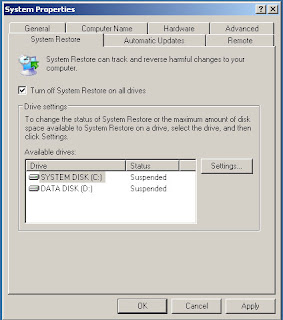
1. To open System Properties, click Start, click Control Panel, and then double-click System. In the System Properties dialog box, click the System Restore tab.
2. Ensure that the Turn off System Restore on all drives check box is selected. Then click Apply and Ok.
How to Turn Off System Restore
Note:
If you cannot turn System Restore off, your domain administrator might have enforced administrative system Group Policy on System Restore. Contact your domain administrator.

How to Speed Up Your Computer without Using Third-Party Software

speed up computerSo, you got yourself a new computer, but its not shaping up to what it used to be all that time ago? Here’s how you can help speed up your computer to like it used to be. All changes you make is at your own risk, no responsibility is taken if your computer stops working

Step 1: Opening the system configuration
This tool allows you to edit your windows start-up configuration changing what will run and what will not. Open the utility by going to Start, and then Run. Afterwards, type in “msconfig” and press OK. In Windows Vista, you may have to type ‘run’ into the search box on Start. Users with Windows 2000 do not have this utility, but they can still use it by copying the file from Windows XP or Vista and putting it onto your system. Operating systems below 2000 can not run this utility.

Step 2: Editing the startup settings
By clicking the ‘Startup’ tab, you can now choose what processes you would like to run on your computer at start-up. The more you uncheck, the faster your computer will be. Obviously, do not uncheck any Microsoft or Windows Operating System processes, as these will stop your computer from working. Make sure you leave checked any processes required for sound, video, display and virus protection software. It is inadvisable that you change any other setting, but once finished, restart your computer.

Step 3: Uninstalling unnecessary programs
After time you may have got yourself programs you don’t even need anymore. You can easily uninstall these programs from your Control Panel. Going to your Control Panel and selecting ‘Add or Remove Programs’, or for Vista users ‘Programs and Features’, will bring up the necessary screen. Browse through the list of programs you have, and choose the uninstall tab on the program you wish to remove, highlighting first the program you want to remove. Once the setup is done, continue uninstalling programs until you are happy, it also will free up extra space on your hard drive. Restart the computer once finished. Do not uninstall any programs that have been installed by Windows Update / Microsoft Update, these are necessary to keep the computer working properly. Also, do not uninstall Java.

Step 4: Running a disk defragmenter
Defragmenting your hard disk helps to speed up your computer and its ability to load files faster. To run this, go to Start, then All Programs, then Accessories, then System Tools, and finally choose Disk Defragmenter. It may take several hours to complete, but it can be worth the time after.

Step 5: Adjusting your computer for best performance
If you like the style of the old Windows Classic themes, you should follow this step to enable your computer to be faster. Sure it’ll look a bit uglier on the eyes, but at least you’ll be ahead of the game. Going to Control Panel, then System (then Advanced System settings for Vista), will bring up your computer’s system information. Click the advanced tab, if not already, and press the ‘Settings’ button underneath performance. Select the option to “Adjust for best performance” and press apply.

Step 6: Increasing the virtual memory
Virtual memory, also known as Page File memory, uses a portion of your hard disk and acts like RAM allowing more information to be used and made at one time. It stores data about programs while your computer is running, and dumps it as needs be. Keeping the performance window open, go to the Advanced tab. By clicking the ‘Change’ button will allow you to increase your virtual memory. Uncheck the setting “Automatically manage page filing size for all drives”. Then choose your hard disk drive from the list and choose custom size. Set the sizes accordingly to however much page file your computer uses (1024MB is best as an initial size). Once finished, press ‘Set’ and ‘OK’. You should not set your maximum size larger than double the minimum setting, otherwise too much space may be used on your hard drive leaving you nothing left.

Step 7: Running a virus scan
If you have an anti-virus scanner installer on your computer, have a disk with one on handy, or a place to get a free scanner (Such as Avast or AVG free), run a thorough virus scan on your computer, it will help to detect any harmful computer viruses and remove or contain them in a secure way. Viruses will slow down you computer, so it is handy to have.

Sunday, February 07, 2010

The Relevance of Flash

When Apple’s iPad was announced, a lot of people were hoping that it would Adobe’s Flash. When it didn’t, those folks were so loud that the internet reverberated with how pissed they were with Apple. While the debate on the usefulness and success of the iPad is still up in the air -- we cannot say until the device actually ships and the actual sales numbers from Apple get published -- the relevance of Flash as an important component of the web is now being questioned.

Blogger Robert Scoble, in his blog, Scobleizer, posted “Can Flash be saved?” , paving the way for a long discussion that gives us insight about Flash.

Now add to the fact that Daring Fireball’s John Gruber started posting his site’s statistics reflecting the number of visitors using non-Flash enabled browsers - 32.38% , as of the last week of January 2010. Include popular website, Lifehacker.com, posting a steadying decline in the number of Flash-enabled browsers, from 2.32% in 2006 to 6.07% in 2009, and Waxy.org’s Andy Baio tweeted that 16% of its visitors don’t have Flash installed, up from 4% a year ago, you’d get an idea that Flash is indeed a dying platform. A friend of mine, Apple genius, Martin Gonzalvez, tweeted that on his Mac, running Hulu.com Flash video at 75% screen resolution eats up 92% of his Mac’s CPU cycles, as compared against running Windows 7 with full anti-virus scanning on VirtualBox (a virtualization software) only consumes 66%! He continues that running an HTML5 480p video, at the same resolution as the Flash video, on Safari ate only 15% of his Mac’s CPU cycle. This is not scientific, but then again, you can try this out yourself. Apple knows that Flash is such a resource hog, and worse, it is so unstable that Apple decided to re-engineer Safari to run plug-ins in a sandbox. That way, when a plug-in crashes (particularly Flash), it will not crash Safari. This is also the reason why iPhone and iPod Touch, and the upcoming iPad, do not support Flash -- in addition to Apple not having full control of it, its disadvantages outweigh its advantages. Personally, I think Apple did a good job here.

Google’s YouTube is now experimenting on HTML5 videos. Video site, Vimeo, is doing the same thing. Now, if these aren’t indications of where Flash technology is going, then I do not know what other signs one needs. I have used an iPhone since it debuted in the US, and not once did I miss Flash. I have Flashblock on my Firefox browser, and ClickToFlash on Safari. Heck, I don’t even have Flash on my NexusOne (although Adobe said that it will soon be released).

Since these are my tools to access the web, then I definitely have no use for Flash. :P Frankly, if not for games, such as Farmville and Mafia Wars, I am sure that most of my friends will abandon Flash, too. Web-developers should learn that providing a Flash-only site alienates a growing percentage of viewers. They should learn to provide an alternative non-Flash version, if they want to continue getting those eyes on their sites. With Apple’s iPad getting a lot of media coverage, I am sure that major sites are now reconsidering their offerings. Ironically, one of Adobe’s Flash platform evangelists posted a blog post showing different websites (including a porn site) that support Flash, as a JPEG image, instead of their “ubiquitous” Flash. Mr. Merlin Mann caught it and it has been reblogged on my Tumblr site, . Like Mr. Mann, I’m used to seeing the blue block on my browsers!

Wake up and smell the coffee - your time is up, Flash! Developers are now moving AWAY from the platform. With browsers, armed with plug-ins, and devices not supporting your technology, you have no way else to go. Frankly, Flash, like Windows Media, is going the way of RealMedia -- to the grave!
source: mb.com.ph

Wednesday, October 14, 2009

Change the Screen Resolution of your Monitor

Change the Screen Resolution of your Monitor
The setting that determines the amount of information that appears on your screen, measured in pixels. Low resolution, such as 640 x 480, makes items on the screen appear large, although the screen area is small. You can switch your screen resolution temporarily to 640 X 480 if you have games or other programs that are set to run at that resolution. High resolution, such as 1024 x 768, makes the overall screen area large, although individual items appear small. Your monitor and video adapter determine how much you can change your screen resolution. You may not be able to increase the resolution above a certain level.


To change your screen resolution
1. Open Display in Control Panel.
2. On the Settings tab, under Screen resolution, drag the slider, and then click Apply.
3. When prompted to apply the settings, click OK. Your screen will turn black for a moment.
4. Once your screen resolution changes, you have 15 seconds to confirm the change. Click Yes to confirm the change; click No or do nothing to revert to your previous setting.

To change screen resolution in desktop
1. Right-click on desktop (Make sure you don’t hit the icons). Then click Properties.
2. On display property, click settings tab, under Screen resolution, drag the slider, and then click Apply.
3. When prompted to apply the settings, click OK. Your screen will turn black for a moment.
4. Once your screen resolution changes, you have 15 seconds to confirm the change. Click Yes to confirm the change; click No or do nothing to revert to your previous setting.

Sunday, July 12, 2009

Google Introduced New Browser: Google Chrome OS

Google Chrome OSAn upcoming lightweight and an open-source operating system that will dominate the browser market today, that announced by Google. They name it as Google Chrome OS which is the natural extension of their previously released browser, Google Chrome. Google designed Google Chrome for people who live on the web, searching for information, checking email, catching up on the news, shopping or just staying in touch with friends. However, the operating systems that browsers run on were designed in an era where there was no web. That is why, Google announced a new project that's a natural extension of Google Chrome — the Google Chrome Operating System. It's our attempt to re-think what operating systems should be. Google Chrome OS is an open source, lightweight operating system that will initially be targeted at netbooks. Later this year we will open-source its code, and netbooks running Google Chrome OS will be available for consumers in the second half of 2010. Speed, simplicity and security are the key aspects of Google Chrome OS. With Chrome OS, Google plans to follow the same formula it used with its browser. Chrome OS will run on x86-based PCs, as well as machines built around the ARM processor. I’ve heard in the past there has been some speculation that Google would develop its own operating system, but I think that Chrome's launch makes one thing is clear. The Web browser is Google's operating system. Users want their computers to always run as fast as when they first bought them. They want their data to be accessible to them wherever they are and not have to worry about losing their computer or forgetting to back up files. Even more importantly, they don't want to spend hours configuring their computers to work with every new piece of hardware, or have to worry about constant software updates. And any time users have a better computing experience, Google benefits as well by having happier users who are more likely to spend time on the Internet.

Sunday, June 28, 2009

What is a Computer Program?

Computer Program is a set of instructions that directs a computer to perform some processing function or combination of functions. For the instructions to be carried out, a computer must execute a program, that is, the computer reads the program, and then follows the steps encoded in the program in a precise order until completion. A program can be executed many different times, with each execution yielding a potentially different result depending upon the options and data that the user gives the computer. Programs fall into two major classes: application programs and operating systems. An application program is one that carries out some function directly for a user, such as word processing or game-playing. An operating system is a program that manages the computer and the various resources and devices connected to it, such as RAM (random access memory), hard drives, monitors, keyboards, printers, and modems, so that they may be used by other programs. Examples of operating systems are DOS, Windows 95, OS/2, and UNIX. Software designers create new programs by using special applications programs, often called utility programs or development programs. A programmer uses another type of program called a text editor to write the new program in a special notation called a programming language. With the text editor, the programmer creates a text file, which is an ordered list of instructions, also called the program source file. The individual instructions that make up the computer program source file are called source code. At this point, a special applications program translates the source code into machine language, or object code—a format that the operating system will recognize as a proper program and be able to execute. Three types of applications programs translate from source code to object code: compilers, interpreters, and assemblers. The three operate differently and on different types of programming languages, but they serve the same purpose of translating from a programming language into machine language.

Sunday, June 07, 2009

The Different Internal DOS Command

If you are a DOS (Disk Operating System) novice just learning these commands I would recommend just scrolling down the screen and reading about them all. Just remember the important ones like: DIR, COPY, CD, RD and DEL. In programs that respond to commands through a command-line interface, the user must enter an exact command, usually in the form of a keyword, into the computer. They will get you started. Internal DOS commands are a part of the operating system and are loaded together with it. Running internal DOS commands doesn't require the presence of a system disk in a drive.

BREAK - Sets or clears extended CTRL+C checking.
CD - Displays the name of or changes the current directory.
CHDIR - Displays the name of or changes the current directory.
CLS - Clears the screen.
CMD - Starts a new instance of the Windows command interpreter.
COPY - Copies one or more files to another location.
DATE - Displays or sets the date.
DEL - Deletes one or more files.
DIR - Displays a list of files and subdirectories in a directory.
ERASE - Deletes one or more files.
EXIT - Quits the CMD.EXE program (command interpreter).
MD - Creates a directory.
MKDIR - Creates a directory.
PATH - Displays or sets a search path for executable files.
PROMPT - Changes the Windows command prompt.
RD - Removes a directory.
REN - Renames a file or files.
RENAME - Renames a file or files.
RMDIR - Removes a directory.
SET - Displays, sets, or removes Windows environment variables.
TIME - Displays or sets the system time.
TYPE - Displays the contents of a text file.
VER - Displays the Windows version.
VERIFY - Tells Windows whether to verify that your files are written correctly to a disk.
VOL - Displays a disk volume label and serial number.
LOCK - It 'locks' a disk so DOS programs can have direct access to it.
UNLOCK - This unlocks a drive from direct disk access.

That’s it guys! I hope the following internal DOS commands were helpful to you. I know there are a lot of internal DOS commands available in DOS but those commands are the only thing I remembered just notify me if some are missing in you’re lists.

Tuesday, April 14, 2009

How to use Disk Cleanup Utility

By freeing disk space, you can improve the performance of your computer. The Disk Cleanup tool helps you free up space on your hard disk. The utility identifies files that you can safely delete, and then enables you to choose whether you want to delete some or all of the identified files.

Use Disk Cleanup to:

  • Remove temporary Internet files.

  • Remove downloaded program files (such as Microsoft ActiveX controls and Java applets).
  • Empty the Recycle Bin.
  • Remove Windows temporary files.

  • Remove optional Windows components that you don't use.
  • Remove installed programs that you no longer use.

Tip: Typically, temporary Internet files take the most amount of space because the browser caches each page you visit for faster access later.
To use Disk Cleanup:

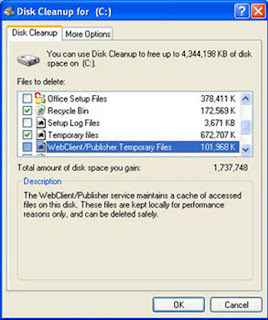
  1. Click Start, point to All Programs, point to Accessories, point to System Tools, and then click Disk Cleanup. If several drives are available, you might be prompted to specify which drive you want to clean.
  2. In the Disk Cleanup for dialog box, scroll through the content of the Files to delete list.


  3. Clear the check boxes for files that you don't want to delete, and then click OK.
  4. When prompted to confirm that you want to delete the specified files, click Yes.

After a few minutes, the process completes and the Disk Cleanup dialog box closes, leaving your computer cleaner and performing better.

By: Techlabcapiz

Saturday, February 28, 2009

Using a Search Engine

Using a Search Engine

Computer-based global information system. The Internet is composed of many interconnected computer networks. Each network may link tens, hundreds, or even thousands of computers, enabling them to share information with one another and to share computational resources such as powerful supercomputers and databases of information. The Internet has made it possible for people all over the world to effectively and inexpensively communicate with one another. The internet is still a great way to look things up. You can find addresses or recipes, listen to music, or find things to do. You can look up information on hobbies or musical instruments, or read a magazine or newspaper online. If you search the internet on your own, make sure the web site you find is reliable.
The best way to find web sites is to use a search engine. Here are some helpful ones:
Google (www.google.com)
Yahoo (www.yahoo.com)
MSN (www.msn.com)
Start by typing one or two search terms or keywords that describe your topic. For example “Hectic Capiznon Bloggers 2009” the search engine scans the internet and gives you a list of sites that contain them and you will find information about Hectic Capiznon Bloggers 2009 topics. The results appear in a certain order, or rank. Search engines use different ways of measuring which websites are likely to be the most helpful. The site that’s listed first may not have what you want. Explore as many of the sites as possible. You might have a narrow search by using more keywords. Or trying using directories to help find what you need for Hectic Capiznon Bloggers 2009. Go Capiznon!

Thursday, February 26, 2009

WebCrawler for Hectic Capiznon Bloggers

WebCrawler, a search engine, computer software program for locating World Wide Web (WWW) information. WebCrawler was developed by University of Washington graduate student Brian Pinkerton in 1994 but is now maintained by America Online, Inc., a commercial Internet service provider. WebCrawler uses a program called a spider. A spider sometimes called robot, softbot, spiderbot, wanderer, crawler, and fish. A Spider is a computer program that automatically monitors documents. Most Web pages include at least one link (an automatic connection) to another Web page, and some include hundreds of links. A spider takes advantage of this structure by starting at one Web page and working its way out by following every link on a Web page and then following every link provided by the new Web pages. Some spiders save the URL (Uniform Resource Locator), or address, of every Web page they visit. These spiders are used by search engines to build indexes of Web pages that users can access to search for information on a particular topic. Indexing spiders, as they are called, often also store the title and partial or complete text of a Web page so users can do more detailed searches. A WebCrawler uses a program called spider to search the WWW for new documents (called Web pages) and to index all the words in the documents. A person using WebCrawler enters a keyword or phrase, for example if you type the keyword Hectic Capiznon Bloggers 2009 the WebCrawler provides a list of all documents that contain the word(s) or phrase for Hectic Capiznon Bloggers 2009. Each title is linked to the document's site on the WWW, so users can go directly from the list to any document on the list and find more useful information about the Hectic Capiznon Bloggers 2009 documents.

Sunday, December 28, 2008

How to make your Computer Healthy

Tips for a healthy PC

1. Don’t manually delete.
Don’t delete an application from your hard drive unless you have to do. Doing so will leave you with visible and invisible debris cluttering up the hard drive.
2. Don’t open everything at once.
Unless you have a top-of-the-range system, avoid firing up multiple programs all at once. Windows has been known to freeze up on slower systems it its given too much to do at once.
3. Run Scandisk.
Try and run it at least once a month to check file and hard drive integrity.
4. Watch Out.
Check the integrity of all files loaded to your PC. If you often download files from the net, it is particularly essential that you install a virus detector. But remember, even files given to you by a colleague on USB flash drive can infect your system.
5. Backup your files.
Windows have their own backup utilities, accessed through System tools.
6. Run the Disk Defragmenter.
Do this once a month too. Your hard drive can get fragmented if you are often installing and uninstalling programs.
7. Get acquainted with System Tools.
Windows in particular, has an impressive range. A few minutes a week turning your PC could save you trouble down the line.
8. Press Ctrl, Alt, Del.
If your system crashes or freezes, try not just switch off manually if possible. Try and get a response first using Ctrl, Alt, Del simultaneously: shutdown from there.
9. Backup before editing.
This can’t be emphasized enough: never try editing the OS Registry file before packing up the original configuration first.
10. Be aware.
Be aware of programs running in the background. If many are active, you should be aware of the possibility of a system lock-up, you can see what is running by opening the task manager by pressing Ctrl, Alt, Del simultaneously.

Sunday, November 23, 2008

Freeze PCs

Common problems in PC, crashes, and safety precaution

Most of us computer users have experienced at one time or another that your computer sudden urge to freeze up and crash. Most of you might blame it on windows and most probably Bill Gates, but there are other reasons or causes why a certain program of yours suddenly won’t respond, or why your computer suddenly won’t boot up. I know you might experience some of this, but never fear lads, you are not alone in this kind of crusade. We are legion. Even MAC or Linux users get the blues.
Now let see if you’ve had any of these nerve-wracking and head banging events happening to your computer just trying to beat a deadline…
Your computer slows down, and part of the screen goes either black or white. This usually means that you’re using too many applications or programs all at once, and your computer can’t handle it. Try pressing ctrl+alt+delete, and look for the program that giving you trouble (usually labeled “not responding”), then try closing the said application by clicking end task. And if your computer is still in the line age of the dinosaur, try not to do all things at once. You might end up with less than you want to gain. Also, this may mean that your 20 years old version computer needs some upgrading like increase of RAM, or better yet, a new computer.
You removed some files or programs from your PC, and the next time you boot up, it won’t.
All computer operating systems (OS) have their own standard files and applications that will render the computer inoperable if you remove them. It safe to say that in windows, whatever was installed in your PC should not be removed, because windows will look for it when you boot up again. Also don’t simply delete programs that look unnecessary or uninstall them. When you boot up, windows system files look for programs that have been installed, so whether you remove the program manually or accidentally, you’re bound to get in trouble.
You installed a new hardware and software, and get a fatal exception error (or something like that). That’s what you called “Blue Screen of Death”.
You might have installed something that is incompatible with your OS, it might be a new sound card, RAM, device driver, software. Try to remove that hardware that you installed or download the latest software updates for that particular hardware. Also pieces of advice, if you are unsure about installing something, try to find someone who knows better.
Why doesn’t my PC shut down, why is it so slow? When about to shut down your PC, allow a few minutes for some rest time. Illegal shutdowns can result in more permanent damage to your files or worst to your PC as well. The system might still be resolving something, maybe like cleaning up temporary files or folders, reallocating memory. This will help prevent from crashes. Try to backup your files on another media, like CD, DVD, or another hard disk. When your system fails, you can still restore your files. Screensavers and desktop themes along with a huge desktop picture of you and your boyfriend/girlfriend can also eat up resources, so try to disable those, or get one that’s not too heavy. Regular system maintenance can prevent slowing down or crashes of your PC. Try to run disk defragmenting and scan disk sessions, virus scanning, dust cleaning, and cleaning up unwanted files. That’s all folks thanks for reading.
Tuesday, November 18, 2008

Repair Your Own PC when Disaster Comes

What do you do when your expensive computer suddenly seems possessed? Whether it’s satanic software or a hard drive from hell, there are hundreds of vexing problems that can make it devilishly difficult to get anything done. Don’t call for an exorcist just yet guys. I’ll show you how to solve your computer that without explanation suddenly possessed, sickening slowdowns, and even revive a dead hard drive by popping it into a freezer. With a pinch of luck and a bit of skills. You can send those digital demons back to the abyss.

Possessed PC
Trouble:
Your PC has a will of its own: The cursor grows and shrinks; letters appear and disappear; and graphics look psychedelic.

Fix: When I see strange screen behavior, I immediately suspect the driver (a small program that works with Windows to control hardware) for my graphics card.
To isolate or eliminate your graphics driver as the culprit (my pal Steve will be happy to know that I'm about to give another software fix), install the Windows VGA graphics driver. Right-click the desktop and choose Properties, Settings, Advanced, Adapter.
If that cures the on-screen ills, download the latest version of your graphics card's driver from the vendor's Web site. If you can't find it, call the company's technical support staff.

Folder Freak-Out
Trouble: Some files and folders look like they've been translated into a Russian or any languages that unknown to you. Worse, one folder seems to have disappeared.

Fix: These trouble signs make my blood run cold, because they're indications of a dying hard disk. First, rescue critical data that hasn't been backed up by copying everything to another hard disk, a CD-RW disc, a Zip disk, or some other storage medium.
Then I recommend that you run the Windows Scandisk utility. Double-click My computer icon select Drive: C or D whatever drive you want to check. Right-click on the drive icon, select properties go to tool tab, look for Error checking label and finally click the “Check Now button”. By clicking the start button it will checks the hard disk for physical damage.
The hard disk may be approaching the end of its life and may need to be replaced.
If you can't back up your files--and it looks like more files are disappearing--you'll need to turn off the computer, remove the hard drive, and take it to data recovery service software if you have. If you don’t have a data recovery tool you can download it into the net.

Running on Empty Memory
Trouble: All of a sudden your system is running unusually slowly (oh! I hate that), crashing, and issuing Low Memory errors.

Fix: My first thought was: Invest in a new CPU and/or RAM upgrade. But don’t buy a new memory yet the idea of opening up a PC when there may be a less drastic way to fix things. For this problem, I agree. Windows XP users should have at least 128 MB of memory. If you run multiple applications at once, anything less than 128 MB will feel like computing in quicksand. If you already have plenty of RAM, then you have two other options: Beef up your PC's virtual memory and look for a memory leak. Virtual memory is a special file on the hard disk--often called a swap file--where the PC stores overflowing data that won't fit in RAM. Windows adjusts the size of the swap file as memory needs grow and shrink. But if the hard disk starts to run out of free space, the swap file may not be able to grow to the size it needs, and the machine will run sluggishly as a result. Either delete or remove files to make room on the hard drive. Or move the swap file to a partition or an additional hard disk that has available space. For Windows XP users, select Advanced, Performance Options, Settings. Then select “Let windows choose what’s best for my computer. The other option is to check for a memory leak. Sometimes software--because it's damaged or poorly designed--won't let go of its assigned memory when it's done using it. If you keep opening and closing the application, it gobbles up more memory until the system has no available RAM. Rebooting the machine can temporarily fix the problem by resetting your memory to its normal settings.

Water Rescue
Trouble:
There’s a typhoon and your computer caught in the flood and sinking like a sub underwater. It’s time to kiss your hardware goodbye. Or is it?

Fix: For desktop PCs caught in the flood, being plugged in and even with no more power-is enough to fry the motherboard the good news is many floods are accompanied by power outages that could spare your system. Open the device and expose the interior, remove the peripherals and gently shake out the water. Use a soft rag to clean off dirt or mud. Use distilled water—a gallon or more for PC, to thoroughly rinse components, particularly metallic leads and wired connectors. Distilled waters clean salts and minerals that slow down good connections. Use soft cloth to wipe the device dry and set it out for 24 hours in a dry, warm place. Apply electrical contact cleaner solution to clean the device and reconnect them. Replace power supply if it got soak and install a new CMOS battery. Also plan to replace spinning media drives if they got wet, they’ll probably fail soon.

Pesky Virus Attack
Trouble: Your PC might have a virus--and you're not running an antivirus utility.

Fix: Start panicking. (You'll do it even though there's no need yet; I always do the same.) Once you're calm and you have access to your browser and the Internet. Download a virus scanner utility. After downloading a copy of this small program onto your PC, anti-virus scans your computer's hard drive, finding and removing pesky viruses.
The best advice? Preventive maintenance "Keep Your PC Neat and Tidy" Always scan e-mail attachments and new downloads, back up your data at least weekly, and update your virus program often.

Get Files Back From the Dead
Trouble: You deleted a file and just realized that you need it for something.

Fix: Now you've done it. You were so sure you didn't want that file that you bypassed the Recycle Bin and permanently erased it by holding down the Shift key when you deleted it. Solution? Download a data recovery programs, it bring deleted files back from the dead--even if you've already formatted your drive.

Hard disk CPR
Trouble:
Your expensive drive died and went to heaven. How in the world can you retrieve your files?

Fix: You can download a Data recovery software on the internet to retrieve you files. It will just cost you some bucks. Though pricey but it’s effective. Another trick for copying data from a drive that won’t spin or read. Place in a Ziploc freezer bag and pop it into the freezer for an hour. Yah! Seriously. Cooling the disk can change the geometry of the head and platters. Use another hard disk and mirroring software like virtual ghost ready to make one shot transfer of your data contents. Still no luck? Here’s your final solution. Use a torx driver ( a screwdriver with a star shaped head) and remove the cover of your hard drive and then give the drive heads a nice gentle tap. Hook the drive to your system (of course with top off) and see if you can access the disk.